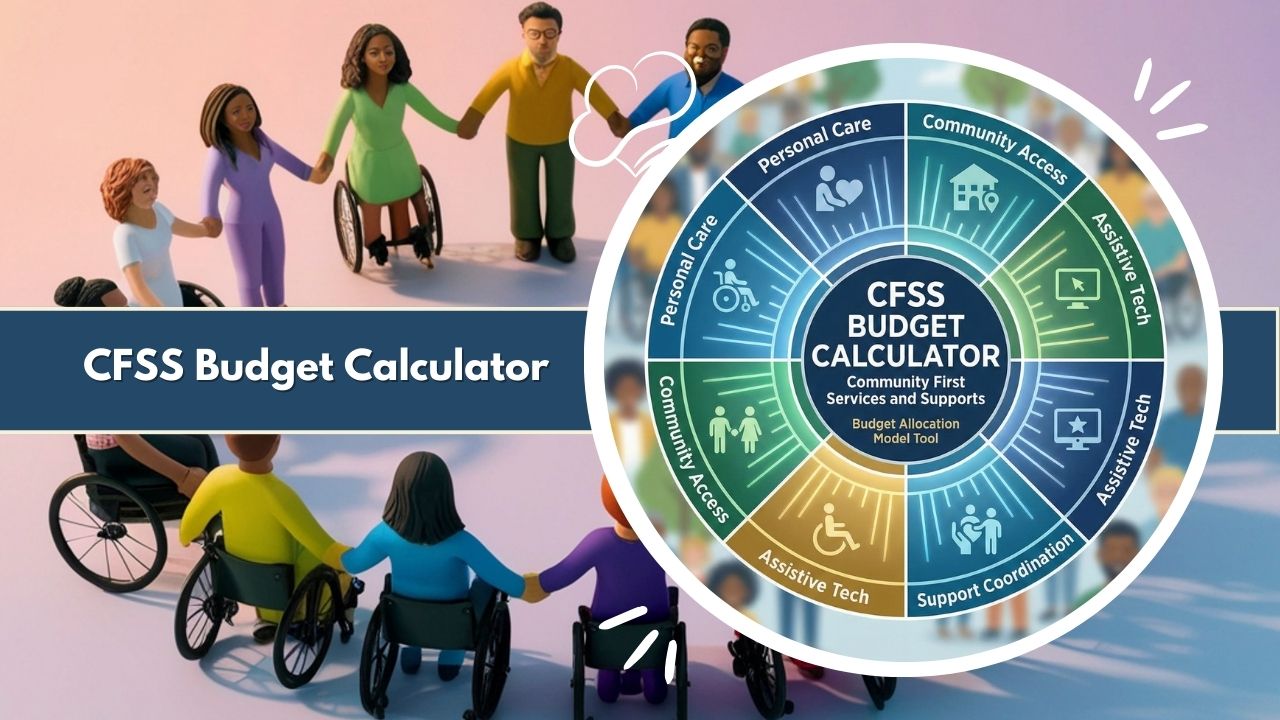
Plan your Minnesota self-directed care with the CFSS Budget Calculator. Model unit-based vs. total budgets, FMS fees, goods/PERS deductions, OT costs, and staffing projections with Chart.js visuals.
Advanced estimation tool for Minnesota Consumer Directed Community Supports (CDCS/CFSS).
1. Allocation Source Data
2. Fixed Deductions
3. Staffing & Overtime Modeling
Budget Analysis
Budget Summary
Financial Breakdown
Visual Distribution
Navigating the financial landscape of Minnesota’s self-directed care programs—specifically Community First Services and Supports (CFSS) and Consumer Directed Community Supports (CDCS)—requires precise planning. For participants, representatives, and support planners, the transition from simple service agreements to managing a comprehensive budget can be daunting. The complexity lies not just in knowing your total allocation, but in understanding how that money translates into actual hours of care after mandatory deductions and labor laws are applied.
The CFSS Budget Calculator is a specialized financial modeling tool designed to bridge the gap between a state authorization letter and a workable staffing schedule. Unlike basic calculators that simply divide a total budget by a wage, this tool accounts for the real-world friction points of self-direction: Financial Management Services (FMS) fees, annual goods and services, employer tax loads, and the critical impact of overtime (OT) multipliers.
Whether you are transitioning from PCA services to CFSS, managing an existing CDCS plan, or acting as a support planner for multiple clients, this tool provides the mathematical clarity needed to build a sustainable care plan. By simulating real-world costs—including the often-overlooked 1.5x overtime premium—the calculator empowers users to maximize their direct care budget while avoiding the financial risks of overspending.
How the CFSS Budget Calculator Works
The CFSS Budget Calculator operates as a comprehensive simulation engine for Minnesota’s self-directed budgets. It simplifies the planning process by breaking it down into a logical flow: Allocation Input → Fixed Deductions → Staffing Modeling → Visual Output.
The tool offers flexibility by supporting two distinct starting points. Users can begin with the Unit-Based Mode, which is standard for many CFSS authorizations where the state provides a daily unit count (15-minute increments) and a set rate. Alternatively, for those with a confirmed annual sum (common in CDCS), the Total Budget Mode allows for direct entry of the T2028 annualized amount.
Once the gross allocation is established, the calculator automatically subtracts fixed costs. Mandatory FMS monthly fees and annualized spending for Goods, Services, and Personal Emergency Response Systems (PERS) are deducted first. This step is crucial because it isolates the Net Direct Care Budget—the actual pool of money available for staffing.
From there, the tool enters its staffing logic phase. Users input the desired worker wage, the employer tax percentage (covering FICA, SUTA, FUTA, and Workers’ Comp), and the target weekly hours. The calculator then runs a 52.14-week projection, applying Minnesota’s standard overtime rules (1.5x pay for hours over 40) to determine if the plan is affordable.
The results are presented instantly via dynamic Summary Cards, a Doughnut Chart for budget distribution, and specific Alerts for overtime triggers or budget deficits. Finally, users can export their unique scenario via CSV or share a configured link with their care team.
Inputs Explained in Detail
To generate an accurate projection, the calculator requires specific data points found in your service agreement or assessment documents.
Unit-Based Calculation
This is the default mode for the calculator. It requires three specific inputs to determine the Gross Annual Budget:
- Daily Units: The number of 15-minute units authorized per day.
- State Rate: The dollar amount reimbursed per unit (e.g., $5.34).
- Timeframe: The calculator automatically annualizes this using a standard 365-day year.
- Formula: Daily Units × State Rate × 365 = Gross Annual Allocation.
Total Annual Budget (T2028)
For users who already know their total annualized figure, this mode allows for manual entry. This is particularly useful for CDCS participants or CFSS users who have a specific “Budget Cap” listed on their service authorization letters under code T2028.
FMS Monthly Fee (T2041)
Almost all self-directed plans in Minnesota require the use of a Financial Management Services (FMS) provider to handle payroll and taxes. This fee is a fixed monthly cost deducted from your budget before any staffing can be paid. The calculator annualizes this monthly fee (Fee × 12) to show the total administrative burden on the budget.
Goods, Services & PERS Costs
Many participants use a portion of their budget for environmental modifications, assistive technology, or PERS (Personal Emergency Response Systems). This input field allows users to set aside a lump sum for these non-labor expenses. The tool subtracts this amount from the gross allocation to prevent users from allocating “spent” money toward caregiver wages.
Wage & Employer Tax Modeling
This section determines the “True Hourly Cost” of an employee.
- Worker Hourly Wage: The gross hourly rate paid to the worker.
- Employer Tax/Overhead (%): The percentage added to the wage to cover mandatory employer costs. This typically ranges from 15% to 20% depending on the FMS provider and specific insurance costs.
- Result: A $20.00 wage with a 16.5% tax load costs the budget $23.30 per hour.
Overtime Rules
The calculator contains hardcoded logic reflecting the Fair Labor Standards Act (FLSA) and Minnesota statutes.
- Threshold: 40 hours per workweek.
- Multiplier: 1.5x the “True Hourly Cost” for every hour exceeding the threshold.
Weekly Hours Target
This is the user’s “Ask.” By inputting the number of hours of care desired per week, the calculator runs a full annual simulation to see if the Net Direct Care Budget can support that schedule.
Calculation Logic and Math
Understanding the math behind the CFSS Budget Calculator is essential for trusting its results. The tool uses a precise “waterfall” methodology to determine affordability.
1. Deriving the Net Staffing Budget Before a single hour of care is calculated, the tool determines how much money is actually available for wages.
Gross Annual Budget − (FMS Monthly Fee × 12) − Annual Goods/PERS = Net Staffing Budget
2. True Cost vs. Blended Cost Staffing costs are rarely static due to overtime. The calculator computes two distinct rates:
- Straight Time Cost: (Wage) × (1 + Tax Load/100).
- Overtime Cost: (Straight Time Cost) × 1.5.
If a user schedules 45 hours a week, the calculator derives a Blended Hourly Rate. It takes the weighted average of 40 hours at the straight rate and 5 hours at the premium OT rate. This “Blended Rate” provides a more accurate picture of the average cost per hour over the course of a year than the base wage alone.
3. Annual Cost Projection The tool uses 52.14 weeks (365 days / 7) rather than a flat 52 weeks to ensure high-precision accounting.
- Annual Base Cost: 40 Hours × Straight Cost × 52.14.
- Annual OT Premium: 5 Hours × OT Cost × 52.14.
- Total Projected Cost: Base Cost + OT Premium.
4. Determining Max Affordable Hours Finally, the tool reverses the math to answer the question: “How many hours can I actually afford?” It divides the Net Staffing Budget by the Blended Cost Per Hour. If no OT is triggered, it divides by the Straight Cost. This results in the “Max Weekly Hours” output, helping users adjust their expectations immediately.
Visual Outputs & Insights
The calculator transforms raw numbers into actionable visual data, allowing users to spot issues at a glance.
Summary Cards
Located at the top of the results section, these cards provide the “Headline” numbers:
- Total Annual Allocation: The gross starting amount.
- Net for Direct Care: The amount left after FMS and Goods.
- Annual OT Premium: A specific readout of the extra cost incurred strictly due to the 1.5x multiplier.
- Max Weekly Hours: The safe limit for scheduling based on current wage inputs.
Interactive Alerts
The tool employs a logic-based warning system:
- Yellow Warning (Overtime Alert): Appears when the target hours exceed 40. It calculates exactly how much the OT premium is costing the budget annually, allowing the user to decide if that premium is worth the extra hours or if hiring a second worker (to avoid OT) is more cost-effective.
- Red Alert (Budget Exceeded): Appears when the Total Projected Cost exceeds the Net Staffing Budget. It explicitly states the deficit amount, prompting the user to lower the wage, reduce hours, or reduce goods spending.
Doughnut Chart
Powered by Chart.js, this visualization breaks the budget down into percentages. It creates a visual wedge for “Wages,” “OT Premium,” “FMS Fees,” and “Goods.” Crucially, it visualizes “Remaining Budget” in green or “Deficit” in dark grey, giving users an immediate sense of their financial health.
Detailed Breakdown Receipt
For those who need to see the line items, the breakdown list serves as a financial receipt. It shows the subtraction of every dollar, the exact tax percentage applied, and the resulting hourly costs for both straight time and overtime.
Real Minnesota Case Example
To illustrate the power of the CFSS Budget Calculator, let’s look at a realistic scenario for a participant in Minnesota.
The Scenario:
- Daily Units: 8 units (2 hours/day).
- State Rate: $5.52 per unit.
- Annual Goods & PERS: $1,420.
- FMS Fees: $110 per month.
- Worker Wage: $17.00/hr.
- Employer Tax: 18%.
- Desired Schedule: 45 hours per week (Single Staff).
The Calculation:
- Gross Allocation: 8 units × $5.52 × 365 days = $16,118.40.
- Fixed Deductions:
- FMS: $110 × 12 = $1,320.
- Goods: $1,420.
- Total Deductions: $2,740.
- Net Staffing Budget: $16,118.40 − $2,740 = $13,378.40.
- Hourly Costs:
- True Cost (No OT): $17.00 × 1.18 = $20.06/hr.
- OT Cost: $20.06 × 1.5 = $30.09/hr.
The Projection (45 Hours/Week):
- Straight Time (40 hrs): 40 hrs × $20.06 × 52.14 weeks = $41,837.14.
- Overtime (5 hrs): 5 hrs × $30.09 × 52.14 weeks = $7,844.46.
- Total Annual Cost: $49,681.60.
The Result: The calculator generates a Red Alert. The plan costs $49,681.60, but the participant only has $13,378.40 available. There is a massive deficit.
The Insight: The “Max Weekly Hours” card would display approx 12.8 hours. This immediately tells the participant that a 45-hour schedule is mathematically impossible on an 8-unit/day budget. The user must either request a reassessment for more units or drastically reduce the weekly hours to align with the ~13-hour affordability cap.
Factors That Influence CFSS Staffing Budgets
When using the calculator to balance a budget, small adjustments to specific variables can yield significant changes in affordability.
- Wage Sensitivity: A $1.00 increase in the hourly wage reduces the total affordable hours significantly over the course of a year. The calculator allows users to “toggle” the wage up and down to find the sweet spot between a competitive wage and sufficient hours.
- Overtime Impact: Scheduling 40 hours vs. 41 hours seems minor, but that 41st hour is 50% more expensive. Across 52 weeks, consistent overtime drains the budget rapidly. The tool highlights this by separating “OT Premium” as a distinct cost.
- Employer Tax Load: This percentage is determined by the FMS provider. A lower tax load (e.g., 15% vs 18%) leaves more room for the worker’s take-home pay. Users should confirm this rate with their FMS.
- Fixed Costs: Every dollar spent on Goods, Services, or expensive FMS fees is a dollar removed from the staffing pool. Reducing discretionary goods spending is often the quickest way to recover hours for care.
Who Should Use This Calculator
This tool is engineered for the entire ecosystem of Minnesota self-directed care.
- CFSS/CDCS Participants: To gain autonomy over their finances and understand exactly what they can pay their workers.
- Representatives: Family members managing funds for a loved one can use the tool to audit their spending plans.
- Support Planners: Professionals can use the “Share Link” feature to send pre-calculated scenarios to clients, saving hours of manual explanation.
- FMS Agencies: Agencies can use the tool to help onboard new clients, illustrating how taxes and fees impact the final wage.
- Case Managers: To quickly verify if a participant’s proposed plan is financially viable before approving the service agreement.
Frequently Asked Questions
Does this calculator replace the official state budget plan?
No. This tool is for estimation and planning purposes only. The final budget must be approved by the lead agency and processed through your chosen Financial Management Services (FMS) provider.
Why is the overtime multiplier 1.5x?
Under the Fair Labor Standards Act (FLSA) and Minnesota state law, non-exempt domestic workers are generally entitled to time-and-a-half pay for hours worked over 40 in a seven-day workweek.
Does the calculator account for holidays?
The calculator assumes a standard weekly schedule across 52.14 weeks. It does not automatically add holiday pay premiums (e.g., time-and-a-half on Thanksgiving) unless you manually factor that into your average wage or goods buffer.
Where can I find my “Daily Units” or “T2028” budget?
These figures are located on your Service Authorization letter or your most recent assessment summary from MnCHOICES. Contact your case manager if you do not have this document.
Can I use this for a split schedule with two workers?
The current version models a single-worker scenario or a cumulative total of hours. If you have two workers who both work under 40 hours, you can enter the total hours and set the OT threshold high to simulate “straight time” for all hours (since no single worker triggers OT).
What is the “Employer Tax/Overhead”?
This is not a tax deducted from the worker’s paycheck. It is the cost you (the budget) pay on top of the wage to cover Social Security (FICA), Unemployment insurance (SUTA/FUTA), and Worker’s Compensation. This is mandatory.
Can I save my results?
Yes. You can use the “Download CSV” button to save a detailed spreadsheet of your budget model, or use the “Share Link” button to generate a unique URL that saves your current inputs.
Related Tools & Calculators:
- FNB Credit Card Budget Calculator
- ABSA Credit Card Budget Calculator
- Nedbank Credit Card Budget Calculator
- Credit Card Budget Calculator
- Car Loan Budget Calculator
- Deloitte Budget Calculator
- Debt Budget Calculator
- EPI Family Budget Calculator
- Apartment Budget Calculator
- Vacation Food Budget Calculator
- Road Trip Budget Calculator
- Japan Trip Budget Calculator
- Disney World Budget Calculator
- Baby Budget Calculator
- Wedding Budget Calculator Percentage
- Engagement Ring Budget Calculator
- Holiday Budget Calculator
- Budget Calculator For Trip
- Marriage Budget Calculator
- Joint Budget Calculator
- Couples Budget Calculator